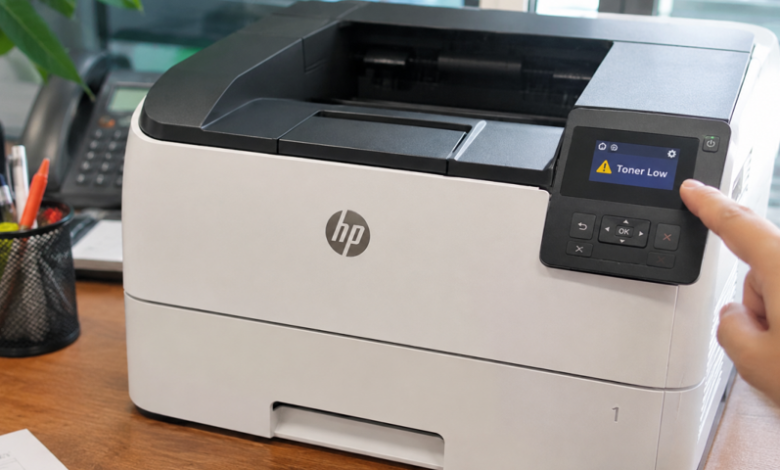
You’re halfway through a big print job. Then the message pops up: “Toner Low.”
Now what? Do you stop? Keep going? Panic-order a new cartridge? Take a breath. This warning is one of the most common messages on any HP printer, and it’s less dramatic than it looks. Let’s go through what it means and what to do.
What Does “Toner Low” Actually Mean?
It’s a heads-up, not a stop sign. The printer is telling you the toner is getting low, so you should plan a replacement soon. In most cases, you can keep printing for a while.
HP printers usually warn in stages. The wording differs between models, but it often goes like this:
- Toner Low: The cartridge is running down. Order a spare.
- Toner Very Low: The cartridge is close to empty. Print quality may drop.
- Replace Toner: The printer thinks it’s finished. It may stop or ask you to override.
Check your manual for how your model handles each stage.
So, How Long Can You Keep Printing?
Honestly, it depends. There’s no fixed number of pages. It comes down to:
- What you print. Plain text uses little toner. Photos and heavy graphics use a lot.
- Your settings. Draft mode stretches the toner further.
- The cartridge. A high-yield cartridge usually has more left when the warning appears.
- Your printer’s settings. Some models stop at “Very Low” unless you choose to override.
Some people get a few hundred more pages. Others get far fewer. The honest answer: keep printing, but watch the quality and order a replacement now.
Smart Moves When You See the Warning
1. Order a Replacement Straight Away
Don’t wait for the printer to stop. Check your exact model and toner number, then order a spare. Fresh, correctly matched HP toner cartridges from a supplier who lists your model clearly mean no last-minute scramble and no wrong-cartridge surprises.
2. Check Your Print Quality
Print a test page. Is the text still dark and sharp? Then you have breathing room. Faded text or white streaks mean you’re near the end.
3. Rock the Cartridge
Take it out and rock it gently from side to side a few times. This spreads the toner that’s settled unevenly, and it can give you extra pages. Do it over a sheet of paper in case of spills. It’s a short-term trick, not a cure.

4. Stretch What’s Left
While you wait for the new cartridge:
- Switch to draft or economy mode
- Print only the pages you need
- Preview before printing
- Print in black and white
- Turn on double-sided printing
These cut toner use quickly.
What Happens If You Ignore It?
You can push on for a while. But keep going to the very end and a few things can happen:
- Prints get lighter, then patchy
- White streaks or blank areas appear
- The printer stops until you replace the cartridge
- You’re stuck without toner at the worst moment
None of it is dangerous. It’s just inconvenient. Planning ahead avoids all of it.
“Toner Low” but the Prints Look Fine?
Sometimes the warning appears early. That’s normal. Printers estimate toner level, and the estimate isn’t exact. A cartridge can still print well after the first warning.
But there’s another case. You put in a new cartridge and the printer still says “Toner Low.” That can mean the cartridge isn’t seated properly, tape or a cover is still on, or the printer didn’t read it. Remove the cartridge, check for tape, push it back in until it clicks, and restart the printer.
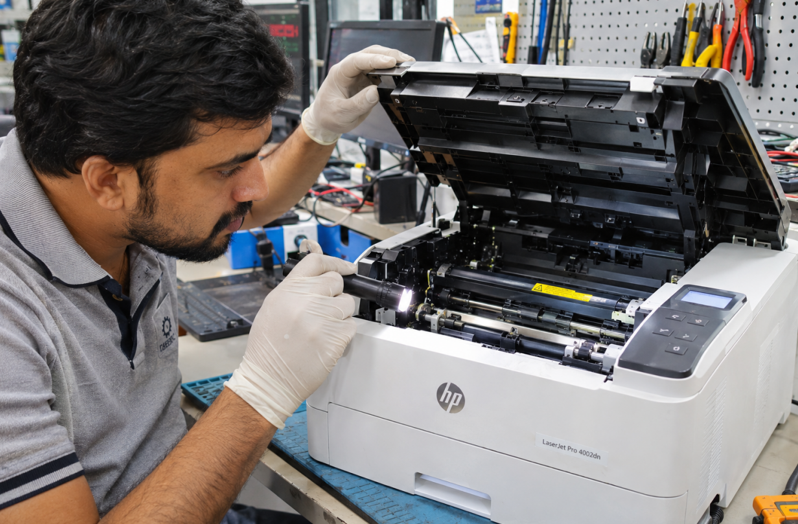
If the message stays even with a correct, brand-new cartridge, the fault may lie inside the printer, such as a faulty sensor. A trusted HP LaserJet repair service can test it and sort it out, so you don’t keep buying cartridges that were never the problem.
How to Avoid Running Out at a Bad Time
- Keep one spare cartridge on the shelf, sealed, in a cool, dry place
- Write your toner number on a sticky note near the printer
- Note the date you install each cartridge and the page count
- Order when the first warning shows up, not the last
- Share the job of ordering with one person in an office
That last point sounds small, but it stops the “I thought you ordered it” problem.
Mistakes to Avoid
- Ignoring the warning until the printer stops
- Buying the wrong toner number in a hurry
- Choosing the cheapest cartridge without checking the seller
- Shaking the cartridge hard instead of rocking it gently
- Leaving tape on the new cartridge
- Opening the printer without training
When Should You Get Extra Help?
Ask a technician if:
- The warning stays after a new, correct cartridge
- Prints stay faded or streaky even with fresh toner
- The printer rejects every cartridge you try
- You hear grinding or clicking
- The printer shuts down or shows errors that won’t clear
Please don’t take the printer apart yourself. The fuser inside gets very hot, and small parts break easily.
Final Thoughts
“Toner Low” isn’t an emergency. It’s a nudge. You can usually keep printing for a while, but the smart move is to order a replacement now, check your print quality and use a few tricks to stretch what’s left. Do that and you’ll never be stuck with an empty cartridge and a deadline. And if the warning refuses to go away with a new cartridge, get the printer checked.